PhantomID Management
PhantomIDs are the core of Detektix — synthetic identities that act as tripwires planted across your digital landscape. This guide covers creating, organizing, and managing them at scale.
Generating PhantomIDs
Navigate to Generate in the left sidebar to create new PhantomIDs in bulk.
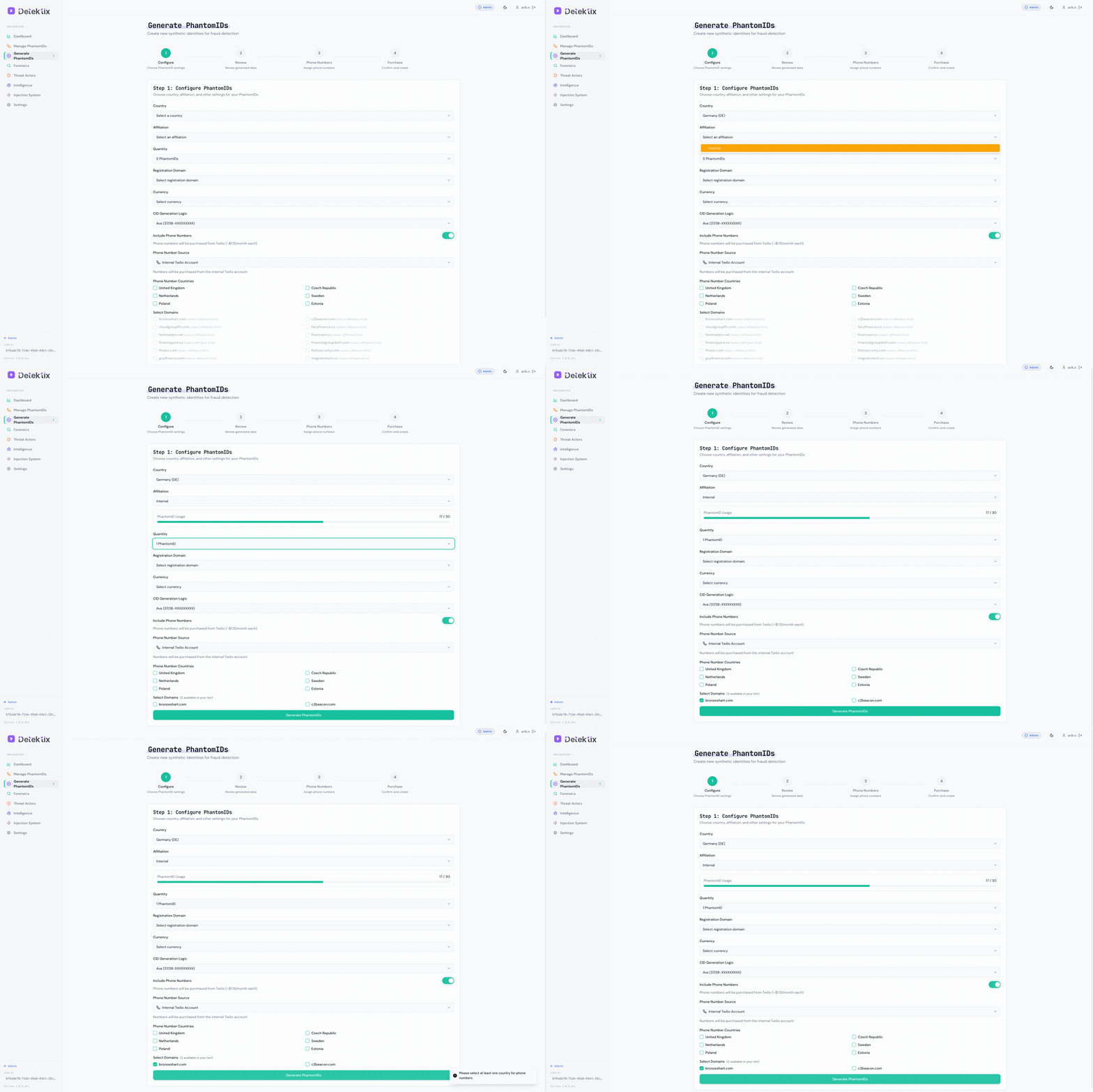
Generation Settings
| Setting | Description |
|---|---|
| Quantity | Number of PhantomIDs to generate (1 to hundreds per batch) |
| Country / Locale | Determines the name style, address format, phone format, and language |
| Affiliation | The business unit that will own these PhantomIDs |
| Email Domain | The monitored domain for generated email addresses |
| Registration Domain | Domain used for injection registration context |
| Currency | Currency setting matching the target region |
| Business Group | Optional grouping for organizational purposes |
Supported Locales
PhantomIDs can be generated in 40+ locales, producing region-appropriate data:
- Names — Culturally appropriate first and last names for the selected locale
- Addresses — Valid street formats, postal codes, cities, and states/provinces
- Phone formats — Region-correct number formatting
- Dates — Locale-specific date of birth formatting
Common locales include: English (US/UK/AU), German, Austrian, Italian, French, Spanish, Portuguese, Polish, Czech, Romanian, Hungarian, Japanese, Chinese, Korean, Arabic, Hebrew, and Turkish.
What Gets Created
Each generated PhantomID includes:
- Full name (first name, last name)
- Email address on your monitored domain
- Phone number — a real, Twilio-provisioned number that can receive calls and SMS
- Physical address (street, city, state/province, postal code, country)
- Date of birth
- Metadata — locale, currency, business group, generation timestamp
Generate PhantomIDs in the same locale as your injection targets. A German-locale PhantomID registered on a German website is far more convincing than an English one.
Viewing and Filtering PhantomIDs
The Phone Numbers page shows all your PhantomIDs in a sortable, filterable table.
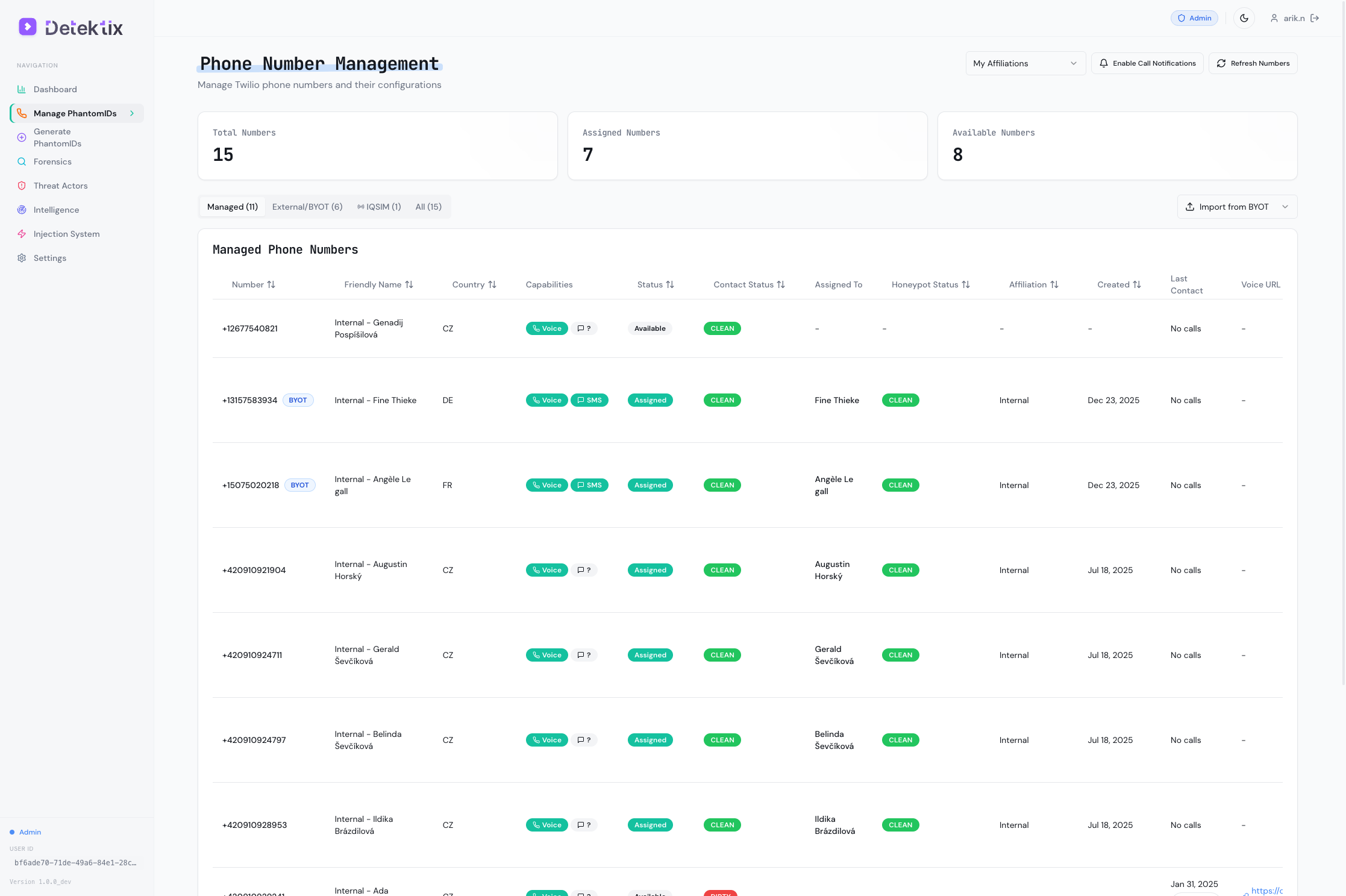
Table Columns
| Column | Description |
|---|---|
| Name | The synthetic identity's full name |
| Phone Number | The assigned Twilio number (click to see call/SMS history) |
| The monitored email address | |
| Affiliation | Business unit that owns this PhantomID |
| Tags | Color-coded labels for categorization |
| Status | Current lifecycle state: Clean, Dirty, or Archived |
| Country | The locale/country this PhantomID was generated for |
| Created | When the PhantomID was generated |
Filtering Options
Use the filter controls at the top of the table:
- Affiliation filter — Show PhantomIDs for a specific business unit only
- Status filter — Show only Clean, Dirty, or Archived PhantomIDs
- Tag filter — Filter by one or more tags
- Search — Free-text search across names, emails, phone numbers, and other fields
- Date range — Filter by creation date
PhantomID Detail View
Click any PhantomID row to expand its full profile:
- Identity details — Complete name, address, email, phone, locale, and metadata
- Injection history — Where this PhantomID has been deployed and when
- Communication log — All calls, SMS messages, and emails received
- Threat actor links — Any threat actors associated with contacts to this PhantomID
- Status history — Timeline of status changes
Tags and Organization
Tags are color-coded labels used to categorize and organize PhantomIDs. They serve both organizational and operational purposes — tags drive the injection system's mapping rules.
Creating Tags
- Navigate to Settings or use the tag management within the PhantomID table
- Create a new tag with a name and color
- Tags are scoped to your tenant and visible across all affiliations
Using Tags
- Organization — Group PhantomIDs by purpose (e.g., "Casino Sites", "Email Lists", "Partner CRMs")
- Injection mapping — Tags connect PhantomIDs to injection targets. Tag a PhantomID with "Casino DE" and it automatically becomes eligible for injection into German casino targets mapped to that tag
- Filtering — Quickly find PhantomIDs by their assigned tags
- Bulk operations — Apply or remove tags across multiple PhantomIDs at once
Tags are the bridge between PhantomIDs and the injection system. A well-organized tagging strategy makes injection management significantly easier.
Status Lifecycle
Every PhantomID has a status that tracks its lifecycle:
Clean
The PhantomID has been created and possibly injected, but no contact has been detected. It's actively being monitored across all channels (calls, SMS, email).
- This is the default state for newly generated PhantomIDs
- Clean PhantomIDs are your baseline — they're planted and waiting
Dirty
The PhantomID has been contacted — someone called the phone number, sent an SMS, or emailed the address. This is a detection signal indicating:
- The planted data has been accessed
- A potential data leak or breach has occurred
- Someone is actively using or targeting the planted identity
When a PhantomID goes Dirty:
- The contact details are logged (caller ID, message content, email data)
- Caller information is enriched (carrier, location, reputation)
- Threat actor detection runs to check for patterns
- Configured alerts and webhooks are triggered
- An incident may be automatically created
Archived
The PhantomID has been retired from active monitoring. Archived PhantomIDs:
- Are removed from active dashboards and analytics
- Retain all historical data (call logs, SMS, emails, threat actor associations)
- Can be reviewed for historical forensics
- Cannot be un-archived (this is a permanent state)
Archive PhantomIDs when:
- They've served their purpose and are no longer needed
- You're cleaning up old deployments
- The associated phone number needs to be recycled
Bulk Operations
For large-scale management:
- Bulk tag assignment — Select multiple PhantomIDs and apply or remove tags
- Bulk status changes — Archive multiple PhantomIDs at once
- Bulk generation — Create hundreds of PhantomIDs in a single batch with consistent settings
- Export — Export PhantomID data for external reporting or analysis