Getting Started
This guide walks you through your first session with Detektix — from logging in to understanding your dashboard and reviewing your first PhantomID.
Logging In
Detektix uses Single Sign-On (SSO) for authentication. Depending on your organization's setup, you'll sign in with:
- Google Workspace — Click "Sign in with Google" and use your corporate Google account
- Microsoft Azure AD — Click "Sign in with Microsoft" and use your organization's Microsoft account
Your administrator will have already created your account and assigned your role. If you can't log in, contact your Detektix administrator or reach out to support.
After signing in, you'll be redirected to the main dashboard.
Understanding the Dashboard
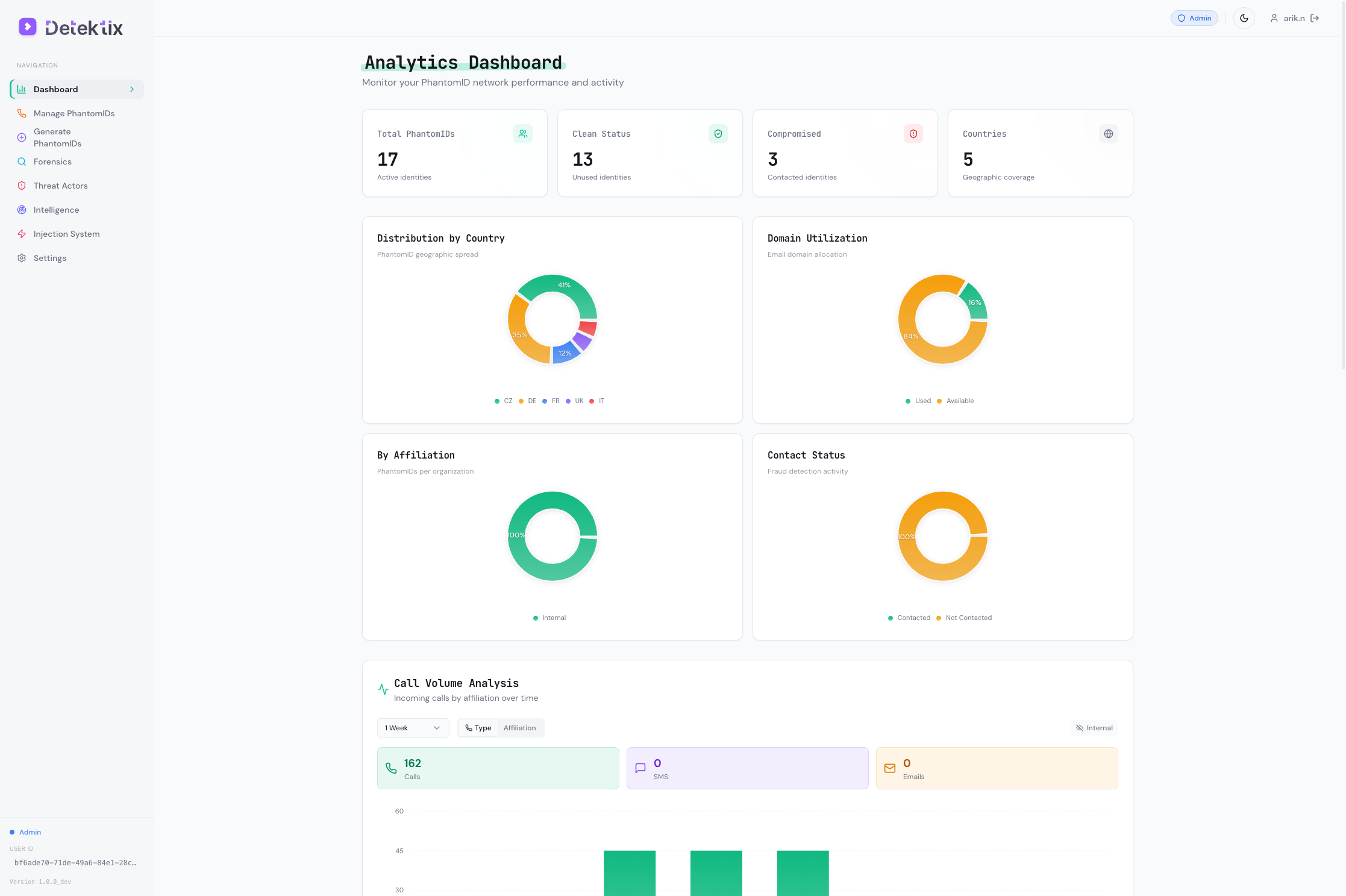
The dashboard is your home base — it provides an at-a-glance view of PhantomID activity across your organization.
Navigation
The left sidebar provides access to all platform features:
| Section | Description | Access Level |
|---|---|---|
| Dashboard | Analytics overview with call volume and activity charts | All users |
| Phone Numbers | PhantomID management table with all active identities | All users |
| Generate | Create new PhantomIDs in bulk | Admin and above |
| Forensics | Call, SMS, and email logs with network graph visualization | All users |
| Threat Actors | Detected threat actor profiles and tracking | All users |
| Intelligence | Domain intelligence and data awareness analysis | All users |
| Injection | Injection system — targets, jobs, mappings | Admin and above |
| Campaigns | Campaign orchestration and management | Admin and above |
| Incidents | Incident detection and response tracking | All users |
| Settings | System configuration, integrations, user management | Admin and above |
| Domains | Email domain management | Tenant Admin only |
| Activity Logs | Full audit trail of user actions | Tenant Admin only |
| Billing | Usage tracking and billing information | Tenant Admin only |
Dashboard Analytics
The main dashboard displays:
- Call volume over time — Chart showing incoming calls to PhantomIDs, broken down by affiliation
- Active PhantomIDs — Count of currently deployed identities
- Recent activity — Latest calls, SMS messages, and emails received
- Threat actor summary — Count and severity distribution of detected threat actors
User Roles
Detektix uses three permission levels:
Tenant Admin
Full control over the entire tenant. Can manage users, domains, billing, and all system settings. Has access to every feature and all affiliations.
Admin
Can create, update, and delete most resources. Can manage PhantomIDs, run injections, configure integrations, and view all data within their assigned affiliations.
Read Only
Can view all data within their assigned affiliations but cannot create, modify, or delete anything. Ideal for stakeholders who need visibility without operational access.
Key Terminology
Before diving deeper, familiarize yourself with these terms:
| Term | Definition |
|---|---|
| PhantomID | A synthetic identity (fake person) created by the platform with a name, email, phone number, and address |
| Affiliation | An organizational unit (department, brand, region) that owns a group of PhantomIDs |
| Injection | The process of deploying a PhantomID into an external platform (CRM, website, database, etc.) |
| Injection Target | A specific external platform configured to receive PhantomIDs |
| Tag | A color-coded label used to categorize and organize PhantomIDs |
| Threat Actor | An identified entity that has contacted one or more of your PhantomIDs |
| Campaign | An organized set of PhantomID deployments with a defined objective |
| Incident | A security event triggered when a PhantomID is contacted |
| Clean | A PhantomID that has not yet been contacted — no breach signal |
| Dirty | A PhantomID that has been contacted — potential data exposure detected |
| Archived | A PhantomID that has been retired from active monitoring |
| BYOT | Bring Your Own Twilio — connect your organization's existing Twilio account |
Your First PhantomID
Let's walk through viewing and understanding a PhantomID.
Step 1: Navigate to Phone Numbers
Click Phone Numbers in the left sidebar. This shows all PhantomIDs in a sortable, filterable table.
Step 2: Understand the Table
Each row represents one PhantomID with these key columns:
- Name — The synthetic identity's full name
- Phone Number — The Twilio-provisioned number assigned to this PhantomID
- Email — The monitored email address
- Affiliation — Which business unit owns this PhantomID
- Tags — Color-coded labels for organization
- Status — Clean (no contact), Dirty (contacted), or Archived
Step 3: View PhantomID Details
Click on any PhantomID row to see its full profile:
- Complete identity information (name, address, locale)
- Assigned phone number and email
- Injection history — where this PhantomID has been deployed
- Communication log — calls, SMS, and emails received
- Threat actor associations — who has contacted this PhantomID
Step 4: Filter and Search
Use the filters at the top of the table to narrow your view:
- Affiliation — Show PhantomIDs for a specific business unit
- Status — Filter by Clean, Dirty, or Archived
- Tags — Filter by specific tags
- Search — Free-text search across names, emails, and phone numbers
What Happens When a PhantomID Is Contacted?
When someone calls, texts, or emails a PhantomID:
- The communication is logged — Call details, SMS content, or email data is captured and stored
- The PhantomID status updates — Changes from "Clean" to "Dirty", signaling potential data exposure
- Caller information is enriched — The platform looks up the caller's carrier, location, and reputation
- Threat actor detection runs — The system checks if this caller matches known patterns or has contacted other PhantomIDs
- Alerts fire — Configured webhooks and notifications are triggered
- An incident may be created — Based on severity rules, an incident is automatically generated
This is the core detection loop — every contact with a PhantomID is a signal that planted data has been accessed or leaked.
Next Steps
Now that you understand the basics, explore these guides:
- PhantomID Management — Learn to create and manage PhantomIDs at scale
- Injection System — Understand how PhantomIDs are deployed to external platforms
- Forensics & Detection — Dive into call logs, network graphs, and forensic analysis
- Administration — Configure users, integrations, and system settings
Bookmark this documentation site — press Ctrl+K (or Cmd+K on Mac) at any time to search across all pages.