Administration
This guide covers user management, roles and permissions, affiliations, domains, activity logs, and billing. Most administration features require Admin or Tenant Admin access.
User Management
Inviting Users
To add a new user to your Detektix tenant:
- Navigate to Settings → Users
- Click Invite User
- Enter the user's email address
- Select a role (Tenant Admin, Admin, or Read Only)
- Assign the user to one or more affiliations (determines which data they can access)
- Send the invitation
The user will receive an email invitation. Once they sign in via SSO (Google or Microsoft), they'll have access to the platform with the assigned role and affiliation scope.
Managing Users
From the Users page, you can:
- View all users — See everyone who has access to your tenant
- Change roles — Upgrade or downgrade a user's permission level
- Update affiliations — Add or remove affiliation access
- Remove users — Revoke access entirely
Role Permissions Matrix
| Capability | Tenant Admin | Admin | Read Only |
|---|---|---|---|
| View PhantomIDs, logs, threat actors | Yes | Yes | Yes |
| View dashboards and analytics | Yes | Yes | Yes |
| View incidents and campaigns | Yes | Yes | Yes |
| Create/Edit PhantomIDs | Yes | Yes | No |
| Generate new PhantomIDs | Yes | Yes | No |
| Run injections | Yes | Yes | No |
| Manage injection targets and mappings | Yes | Yes | No |
| Create/Edit campaigns and incidents | Yes | Yes | No |
| Manage integrations | Yes | Yes | No |
| Configure threat actor profiles | Yes | Yes | No |
| Manage users and invitations | Yes | Yes | No |
| Access all affiliations | Yes | No | No |
| Manage domains | Yes | No | No |
| View activity logs | Yes | No | No |
| Manage billing and tiers | Yes | No | No |
The primary difference is scope. Tenant Admins have access to all affiliations and system-level settings (domains, billing, audit logs). Admins are scoped to their assigned affiliations and cannot access tenant-wide settings.
Affiliations
Affiliations are organizational units within your tenant — departments, brands, regions, or any logical grouping that needs its own set of PhantomIDs and data isolation.
Why Affiliations Matter
- Data isolation — Users only see PhantomIDs, logs, and threat actors within their assigned affiliations
- Separate analytics — Dashboard charts and metrics are scoped by affiliation
- Independent operations — Each affiliation can have its own injection targets, campaigns, and tags
- Access control — Users are assigned to specific affiliations, limiting their data visibility
Managing Affiliations
Creating an affiliation:
- Navigate to Settings → Affiliations
- Click Create Affiliation
- Enter a name and description
- The affiliation is immediately available for assigning users and PhantomIDs
Editing affiliations:
- Update the name or description at any time
- Affiliations with existing PhantomIDs cannot be deleted (archive the PhantomIDs first)
Assigning users to affiliations:
- When inviting a new user, select which affiliations they can access
- Users can be assigned to multiple affiliations
- Tenant Admins automatically have access to all affiliations
Best Practices
- Create affiliations that mirror your organizational structure
- Use descriptive names (e.g., "Germany Operations", "Partner Fraud Detection", "Casino Monitoring")
- Keep affiliation count manageable — too many creates complexity without benefit
- Assign users to only the affiliations they need (principle of least privilege)
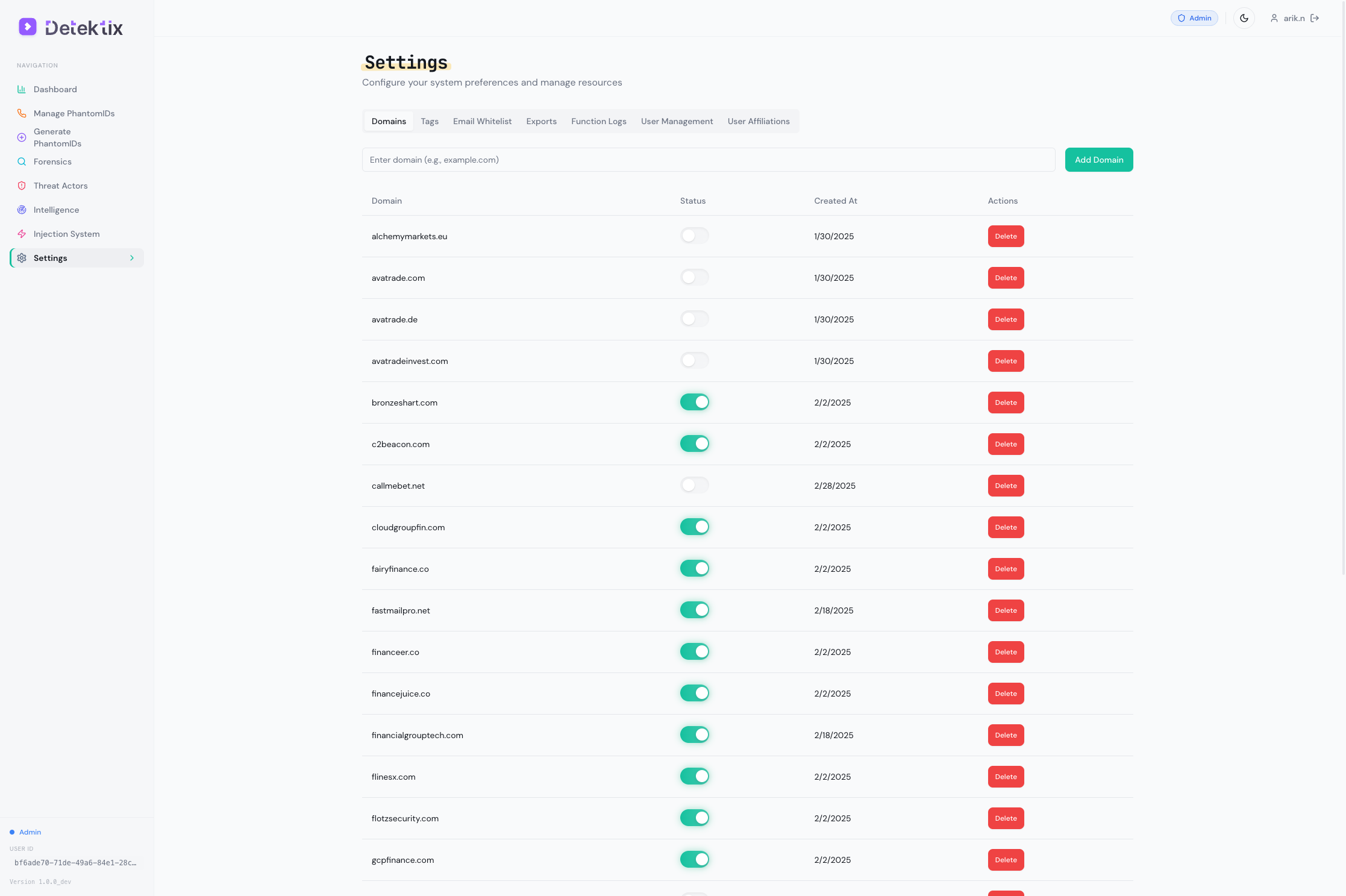
Domain Management
Domains are the email domains used by your PhantomIDs. Managing domains ensures email monitoring works correctly.
Domain management is restricted to Tenant Admin users.
Viewing Domains
Navigate to Domains to see all registered domains with:
| Field | Description |
|---|---|
| Domain | The email domain (e.g., example.com) |
| Status | Current state: Pending, Active, Inactive, or Error |
| Created | When the domain was registered |
Domain Status
| Status | Description |
|---|---|
| Pending | Domain registered, DNS configuration in progress |
| Active | Domain is fully configured and receiving emails |
| Inactive | Domain is registered but not actively receiving |
| Error | DNS configuration issue — check settings |
Email Domain Whitelist
The email domain whitelist prevents false positives by suppressing alerts from known, trusted email domains. For example, if your organization's own domain sends automated emails to PhantomIDs, whitelist it to avoid triggering unnecessary incidents.
Activity Logs
The activity log provides a complete audit trail of every action taken in the platform.
Activity logs are only accessible to Tenant Admin users.
What's Logged
Every user action is recorded:
| Field | Description |
|---|---|
| Action | What was done: create, update, delete |
| Entity Type | What was affected: honeypot, domain, user, injection target, etc. |
| Entity ID | The specific record that was modified |
| User | Who performed the action |
| Timestamp | When it happened |
| Page/Route | Where in the application the action occurred |
| Metadata | Additional context about the change |
Filtering Logs
Filter the activity log by:
- User — Show actions by a specific team member
- Action type — Show only creates, updates, or deletes
- Entity type — Show only PhantomID changes, user changes, etc.
- Date range — Focus on a specific time period
Using Activity Logs
Activity logs are valuable for:
- Compliance — Demonstrate who did what and when for audit purposes
- Incident investigation — Trace back changes that may have caused issues
- User monitoring — Verify that team members are operating within their expected scope
- Change tracking — Understand what changed and when, especially after unexpected behavior
Logs are immutable — once recorded, they cannot be edited or deleted.
Billing & Usage
Track your platform usage and manage subscription tiers.
Billing is only accessible to Tenant Admin users.
Usage Metrics
The billing dashboard shows:
- Active PhantomIDs — Number of currently active (non-archived) identities
- Phone numbers — Provisioned Twilio numbers
- Call volume — Total calls received in the current period
- SMS volume — Total SMS messages received
- Email volume — Total emails captured
- Injection jobs — Number of injection jobs executed
- Storage — Data storage used for recordings, emails, and logs
Tier Limits
Your subscription tier determines the limits for:
- Maximum active PhantomIDs
- Maximum phone numbers
- Maximum injection targets
- Maximum users
- Available features (some features are tier-dependent)
If you're approaching a limit, the platform will display a warning. Contact your Detektix account representative to discuss tier upgrades.
AI Templates
Navigate to AI Templates to manage prompt templates used by the injection system's browser automation:
- View and edit AI instructions for web form filling
- Create templates for different types of registration forms
- Templates can be reused across multiple injection targets
Settings Overview
The Settings page is your central configuration hub. Here's a summary of what's available:
| Section | Description | Access |
|---|---|---|
| Users | Invite, manage, and remove users | Admin+ |
| Affiliations | Create and manage organizational units | Admin+ |
| Integrations | Configure external platform connections | Admin+ |
| API Keys | Manage API access tokens | Admin+ |
| Domains | Register and manage email domains | Tenant Admin |
| Billing | View usage and manage subscription | Tenant Admin |
| Activity Logs | View the audit trail | Tenant Admin |